2.2: the capsule goes where you want.
Drag the capsule while recording or pick a position of your own. A dictation that failed gets a Try again button, and the app now comes in 10 languages. And one shortcut fixes the spelling of any selected text.
Esc no longer loses your dictation
Pressing Esc by accident in the middle of a recording used to throw away everything you had said. Now a cancelled dictation is kept.
-
Cancelled, not lost
- A cancelled dictation or translation goes to the history marked Cancelled, with the text the live preview was showing at that moment. You can copy it or refine it with the styles right there.
- The card that shows up after Esc has a Transcribe button: the dictation goes on as if you had stopped normally and is pasted into the same app. In the history, the same button transcribes and copies.
- The recording stays in memory only (the last 3, together with failures), never on disk. A quick tap on the shortcut and an Esc with no speech are still discarded.
Proofread, draggable capsule, Try again and 10 languages
A new shortcut fixes the spelling of any selected text, without saying a word. The capsule no longer has a fixed place: drag it while recording or pick a position of your own. A dictation that failed is no longer lost, and the app now follows the Windows language.
-
Proofread the selection
- Proofread: select text in any app and press Ctrl Alt J. FlowVoice fixes only the spelling, accents and punctuation, without swapping words or changing the style, and you don't have to say anything.
- If the AI changes more than that, the text stays as it was. If there's nothing to fix, nothing is pasted, and the text's formatting stays intact.
- It's also the Proofread chip on the Command card, on the result and in the history. On keyboards where AltGr J types a character, it starts without a shortcut, and you can pick another one.
-
Move the capsule
- Drag while recording: click the capsule and drag it to any corner of the screen, even to another monitor. It stays where you dropped it until the end of that dictation; on the next one, it goes back to the default position.
- Custom position: besides Bottom and Top, choose the spot by dragging the capsule on a miniature of the screen, with snapping to the corners, edges and center. Test shows where it will appear.
- Use where I last dragged it reuses the spot where you dropped the capsule. It's all in General → Floating window, where you can also turn dragging off.
-
Try again and back-to-back dictations
- When transcription fails (network, limit, key), the error card gets a Try again button and stays on screen for 30 s. The history shows the failure, with the reason and the same button.
- It redoes the dictation as it was made: same app, style and translation, with the current providers and keys. The recording stays in memory only (the last 3 failures), never on disk.
- Two dictations in a row in the same field get a space between them, when the cursor stayed where the previous one ended. Not in terminals, nor in scripts written without spaces, like Japanese and Chinese.
-
10 languages
- The interface is now also in French, German, Japanese, Chinese, Russian, Hindi and Bengali, besides Portuguese, English and Spanish, with the right Windows fonts for each script.
- Automatic (Windows), the new default, follows the Windows language. If you already use the app, it keeps what you picked.
- The tray menu, error messages and the names of the built-in styles follow the interface language.
-
Shortcuts without conflicts
- Paste again comes without a shortcut on new installs, because Ctrl Alt V is Office's Paste Special. It stays in the tray menu, and you can pick a shortcut.
- On keyboards where AltGr K types a character, Command starts without a shortcut, so it doesn't steal the key, and the Shortcuts screen explains why.
-
Privacy and microphone
- New Privacy section on the About screen: what stays on the PC, what goes to each provider and where the keys are kept. The full policy is here.
- Clearer microphone errors: when Windows blocks the microphone, the app says where to unblock it; when another app is using it exclusively, it tells you that too.
- Its own message when another app is holding the clipboard.
-
What's new, in the app
- After an update, the first time the window opens it shows what's new, in the interface language. The full history is in About → Change history and works offline.
-
Fixes
- If the app closed in the middle of a recording with the PC's sound muted, the sound stayed muted. Now it comes back the next time the app opens.
- Start with the system is more reliable: the app also creates a logon task in Task Scheduler, without asking for administrator rights. And turning off startup in Task Manager now really works.
- Command or “Another version” with translation no longer returns two versions, or a note at the end.
- Text in Arabic, Hebrew, Persian and Urdu shows in the right direction in the overlay, the history and the chat.
Now under the GPL-3.0FlowVoice is still free and open source. Any modified version that is distributed must come with the source code, under the same license. Read the license
More stable preview and glass capsule
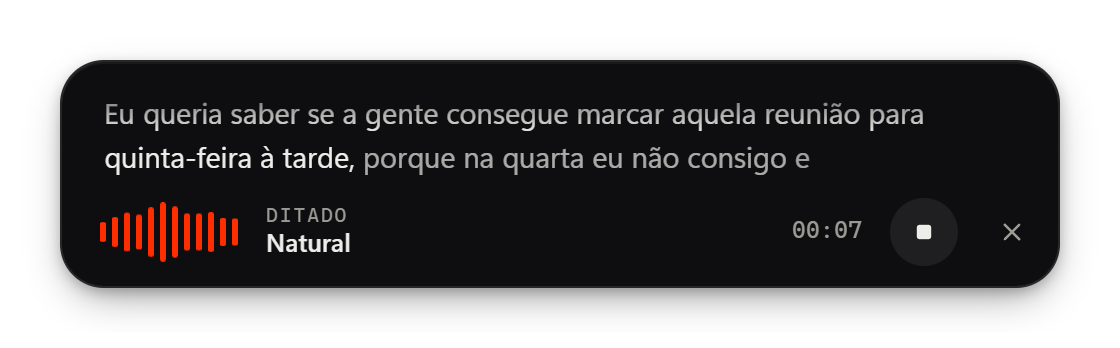
A word only settles when two answers in a row agree on it. Until then, it shows lighter and can still change. After that, it never goes back.
-
Live preview
- The text no longer goes back: each model handles one request at a time, and a late answer is discarded.
- The preview no longer sends the previous text as context (sometimes it came back repeated).
- The pace follows the limits Groq itself reports and always leaves room for the final transcription, which no longer gets “limit reached” right after the preview.
- Long sentences are closed within 15 s: faster answers and fewer seconds used up from the free plan.
- The extra Gemini lane in the preview is gone (it wrote differently from Whisper and was slower).
- Measured with the same 4 audio clips: text shown as settled and then changed dropped from 2.5–7.5 times per dictation to zero, and updates arrive every ~1.2–1.5 s (before, ~1.7–2.0 s).
-
Glass capsule
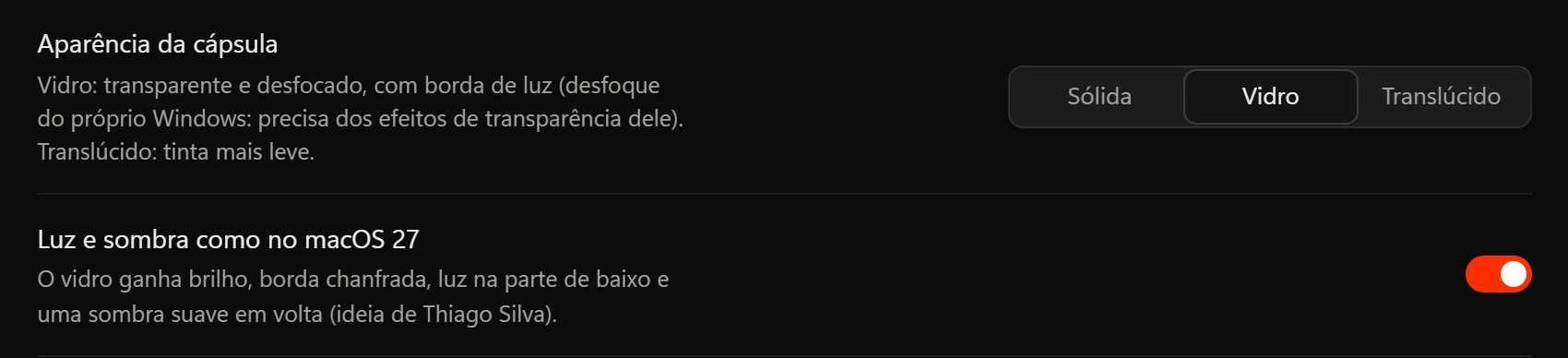
- In General → Floating window: Glass (transparent and blurred, with a light edge) or Translucent (a lighter tint), with Windows' own blur, done by the graphics card.
- Light and shadow like macOS 27: shine, beveled edge, light along the bottom and a soft shadow (an idea from Thiago Silva).
- Needs Windows transparency effects; with them off, or in battery saver, the capsule stays solid.
-
Fixes
- On a busy PC, when starting with Windows, the window sometimes showed an error instead of the settings.
- After updating, FlowVoice reopens by itself with the window open.
Why a rewrite
In 2026, 1.x stopped working for many people: GitHub Models, which it recommended, was discontinued; models that used to be free on Groq left the free plan; old Gemini versions were shut down. And 1.x hid the real error, so it seemed the app just “didn't work”.
2.0 was built so this wouldn't happen again: it shows the provider's real message and swaps a retired model by itself.
What changed
-
Dictation
- Live preview: the text appears while you speak.
- New Prompt style, which trims your speech down to send to an AI, with adjustable intensity.
- Natural, Professional, Raw, Transcript only and styles of your own.
- Style per application:
 Outlook always Professional,
 VS Code always Prompt.
- Removes filler words (“um”, “like”, stutters) and respects your vocabulary.
-
New overlay
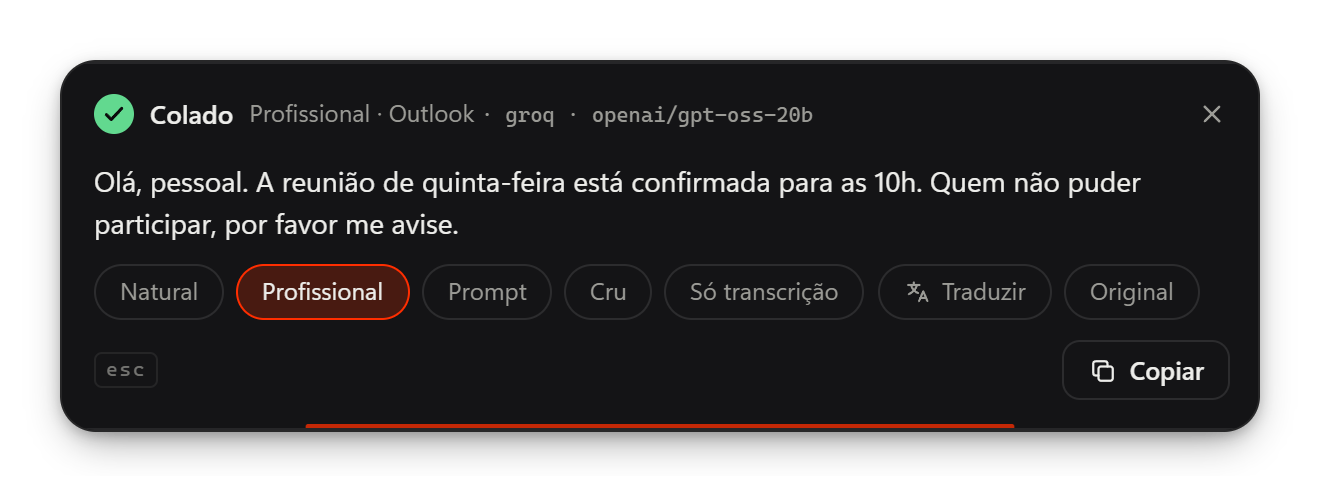
- After the result, one click redoes it in another style or translates it into dozens of languages.
- Replace undoes the previous paste and pastes the new version.
- Follows the mouse or the window in focus, on the monitor you're on.
- Esc cancels at any time.
-
New shortcuts
- Command on a selection: select text in any app and say what to do (“more formal”, “summarize in bullets”).
- Paste again the last dictation into the app in focus.
- Voice translation and a voice assistant with web search and sources.
- Hold-to-talk mode (push-to-talk).
-
Reliable
- Failover between providers and between several keys; if the cloud goes down, it uses the local model.
- Retired models swapped automatically, with a daily check.
- Safe pasting: checks the target window and gives back what was on your clipboard.
- Warns you if the microphone disconnects and switches to another.
-
Better offline
- Model catalog by language, with a recommendation for yours.
- Model tuned for Brazilian Portuguese (Distil-Whisper pt-BR).
- Local transcription several times faster.
- The model leaves memory when you stop dictating; delete models whenever you want.
-
Interface
- Redesigned settings, with search (Ctrl K).
- First-run wizard with a tutorial and a test for each key.
- Light and dark themes, an accent color of your choice, PT/EN/ES.
- New icon and searchable history.
1.x × 2.0
| Feature | 1.x | 2.0 |
|---|---|---|
| Base | Python + PySide6 | Rust (Tauri 2) + Svelte |
| Installer | Large, with Python bundled | A few MB; models only if you want them |
| While you speak | No text on screen | Live text preview |
| After the result | Paste and done | Switch style, translate, replace |
| When the provider fails | Generic error | Next key or provider, with the real message |
| Retired model | Stopped working | Swapped automatically |
| Keys | Config file | System credential vault |
| Updates | Automatic | Automatic and digitally signed |
Coming from 1.x?Install over it. On first run, 2.0 automatically imports your old keys into the system vault. If you were using GitHub Models, create a free Groq key: it takes a few minutes.
The first generation
The original version, in Python. The highlights, from newest to oldest:
- 1.9Web search through Tavily in Search mode, a password to reveal keys, and an interface in Portuguese, English and Spanish.
- 1.8Redesigned overlay and a filter against transcription “hallucinations”.
- 1.5–1.7Automatic update inside the app.
Full notes for each version on GitHub Releases.